WOOCOMMERCE EAN PAYMENT GATEWAY DOCUMENTATION
Installation
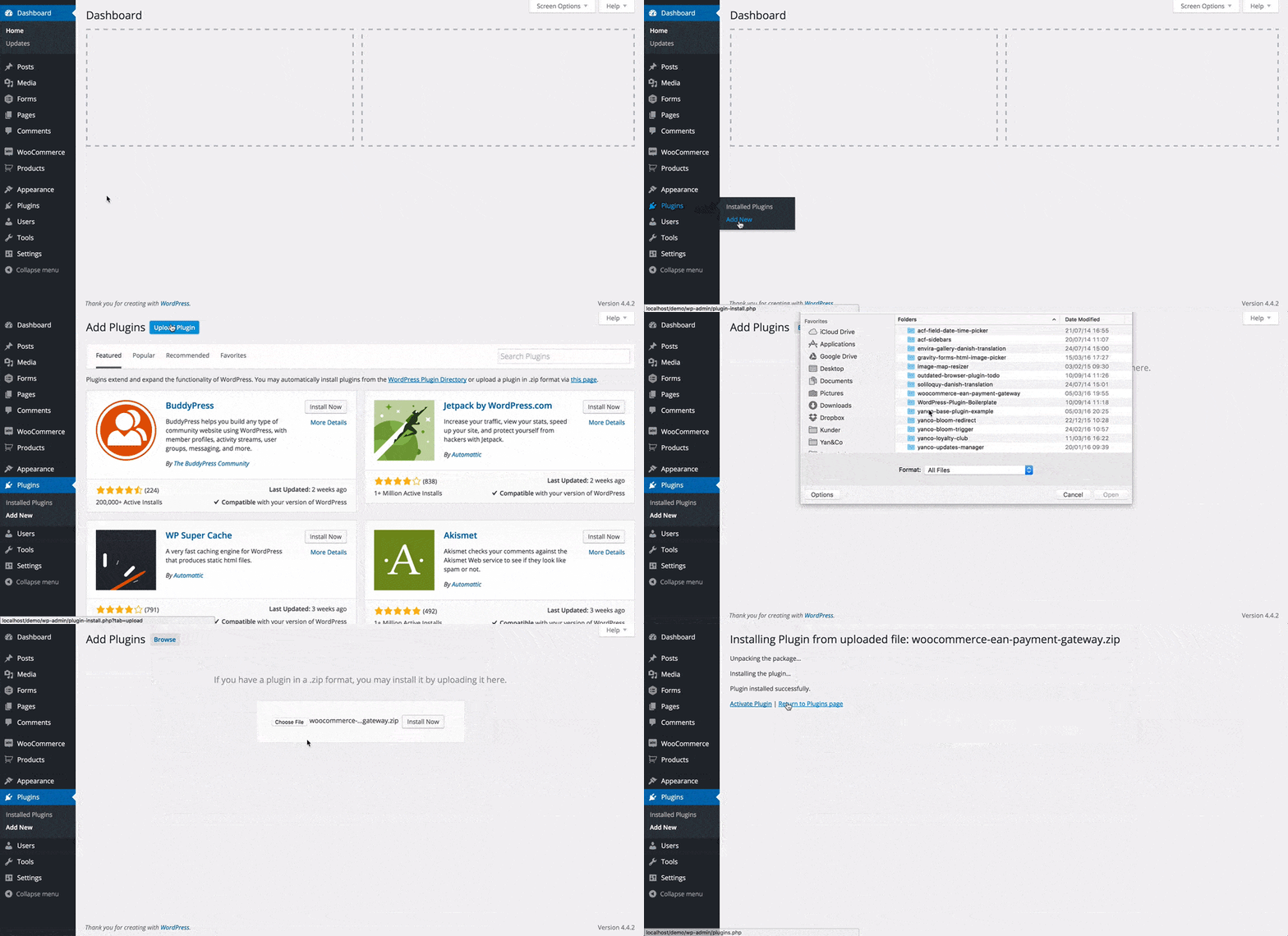
- Upload the plugin file using the WordPress Plugin Installer
- Press Activate Plugin
Payment Gateway Activation
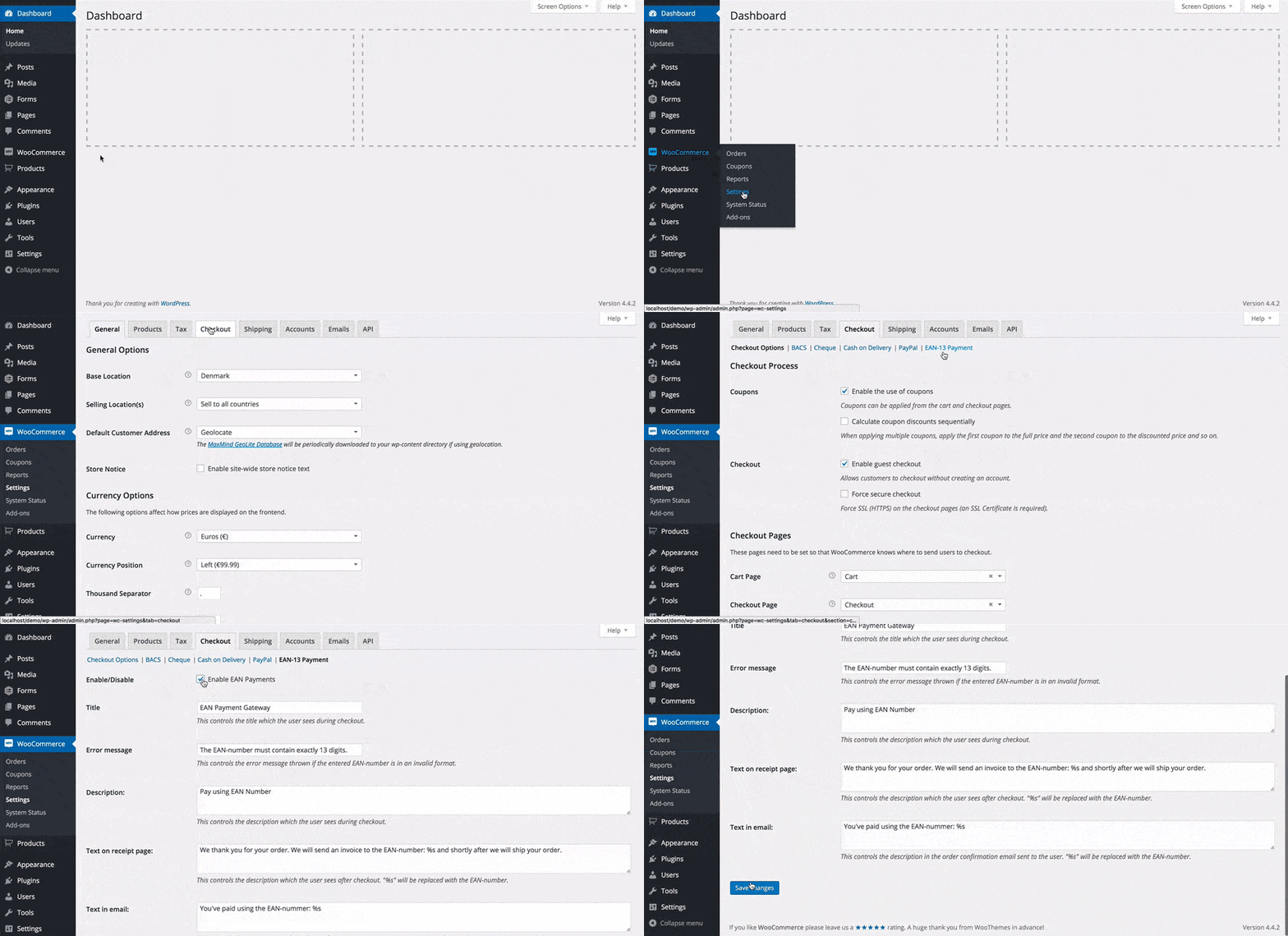
- Go to WooCommerce
- Go to Settings
- Click the Checkout Tab
- Click on EAN-13 Payment Gateway in the top
- Check the box which says Enable/Disable
- Scroll to the bottom of the page
- Click Save Changes
Payment Gateway Settings
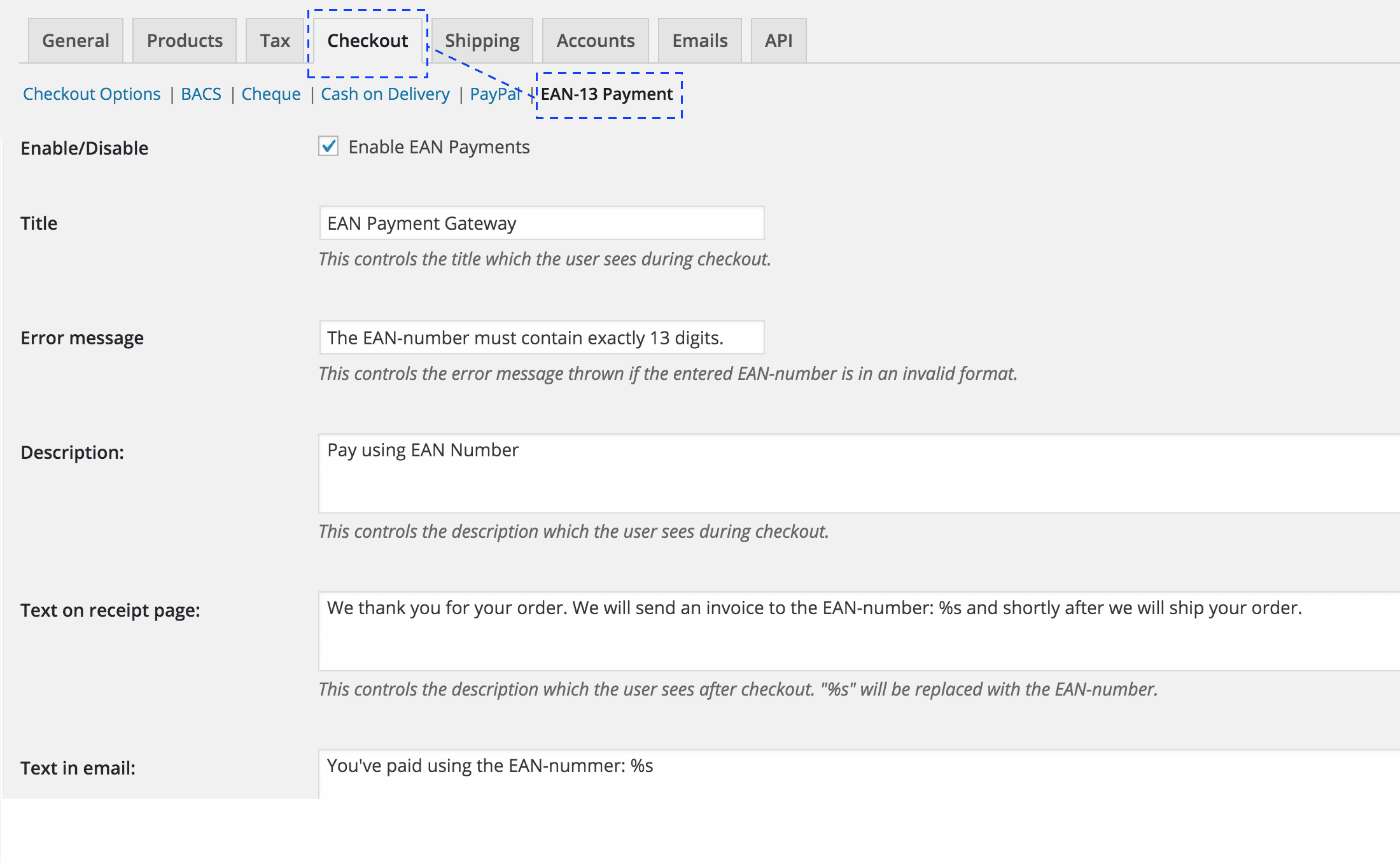
- Go to WooCommerce
- Go to Settings
- Click the Checkout Tab
- Click on EAN-13 Payment Gateway in the top
Under the settings you can now change the messages displayed during checkout. The language files to translate the plugin is included in the wp-content/plugins/woocommerce-ean-payment-gateway/languages folder.
We recommend using Loco Translate (free) for translating the WooCommerce EAN Payment Gateway directly in the WordPress Administration.
Automatic Procession of EAN Data
As of version 2.0.0+ WooCommerce EAN Payment Gateway can now get the data about the entered EAN-Number from Nemhandelsregisteret, if you have a valid license key.
If the entered EAN-number exists in Nemhandelsregisteret the data will be attached to the order in WooCommerce.
First of all verify that you have registered your license and it’s activated for the WooCommerce EAN Payment Gateway plugin.
If you have a verified and active license and the data isn’t showing, it could be because the EAN number isn’t registered in the Nemhandelsregisteret, to check if it is refer to the section “Manual Procession of E-Invoicing (E-faktura) with WooCommerce EAN Payment Gateway”.
If the data is in Nemhandelsregisteret but still isn’t showing, contact us about it. Please provide your email and license key in the information you send to us.

To get the data for an order which has already been submitted to your WooCommerce webshop, please use the “Refresh EAN Data” button for the order(s) you wish to get the EAN Data for.
The API will refresh the data from Nemhandelsregisteret every 24 hours. Thus, if someone submitted a new EAN Number to Nemhandelsregisteret, it could be up to 24 hours before it’s fully registered through the API.
Note: that the orders won’t refresh the data automatically, you have to request a manual refresh of the EAN data for an order.
The API refreshes all valid licenses every 30 minutes, thus if you just bought a license or upgraded your license, it may be up to 30 minutes before you can get and refresh EAN data from the API.
Note: We do this because of caching and load on the system so everyone will have a more pleasant and fast experience
Manual Procession of E-Invoicing
In order to invoice a customer using the EAN Payment Gateway, follow this procedure:
First you have to verify the information you have received.
- Go to WooCommerce
- Go to Orders
- Select View Order on the order which you want to E-invoice
- Copy the EAN number from the order information
- Go to NemHandelsregisteret (click here to open in a new window)
- Paste the EAN number you copied in step 4 in to the search field and press Søg
- Verify that the information about the EAN number matches the information you received on the order
You have now verified the information and can proceed to invoicing the customer.
Help! I can’t find the Refresh EAN Data Button
As of the lastest version of WooCommerce changes have been made by WooCommerce to the order screen so the Actions column isn’t visible by default.
To enable the action column
- Go to Screen Options
- Put a checkmark in Actions
- Click Apply
Invoicing a customer using E-invoicing (E-faktura)
If you have an accounting system like E-Conomic, Dinero, Billy, etc. they have features for sending an E-invoice directly to the client by entering the EAN number on the Customer Information in the system.
If you’re using Dinero, refer to this tutorial
If you’re using Billys, refer to this tutorial
If you’re using E-Conomic, refer to this tutorial
If you’re not using any of the above mentioned your system most likely supports sending E-Invoices, however if it doesn’t you’re able to do so free of charge using Virk.dks NemHandel Faktura Blanket (click to open a new window)which requires you to login using NemID for your company.
Testing the WooCommerce EAN Payment Gateway
In order to test the EAN Gateway use the following test number: 5790001498832
If you want to read more about how EAN-13 numbers are verified please visit this Wiki which explains the details of the calculations
I want to add a handling fee for EAN Payments
As EAN Payments require manual handling, you may wish to add a fee to the order.
To do so add the following code to you functions.php file in the active theme.
You’ll have to change the following:
The text EAN Handling Fee in line 6, to the desired text for the handling fee
$fee_title = __(‘EAN Handling Fee‘, ‘woocommerce-ean-payment-gateway’);
The number 50 in line 7, to the desired value for the handling fee
$ean_handling_fee = 50;
I want to add / remove VAT for the handling fee
To add VAT to the handling fee, change line 25 to
WC()->cart->add_fee( $fee_title, $ean_handling_fee, true, $fee_tax_class );
To remove VAT from the handling fee, change line 25 to
WC()->cart->add_fee( $fee_title, $ean_handling_fee, false, $fee_tax_class );
Controling the order status
If you want to change the default order status for orders placed with the EAN Payment Gateway go to WooCommerce > Settings > Checkout > EAN-13 Payment and change the order status setting.
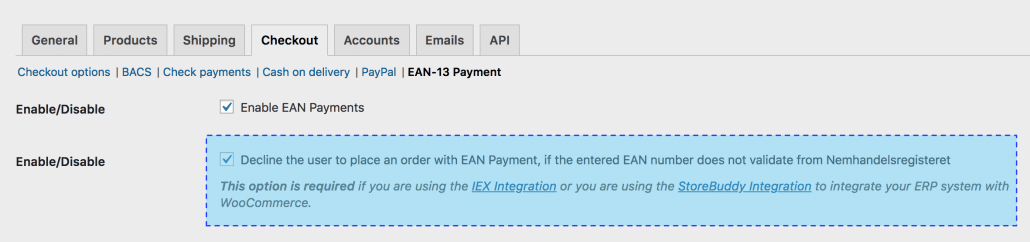
Decline the user to place an order with EAN Payment
If you want to decline users to place an order that doesn’t have an EAN number that exists in Nemhandelsregisteret, you can enable this setting through WooCommerce > Settings > Checkout > EAN-13 Payment
NOTICE: This option requires you to have a valid and enabled license.
- Installation
- Payment Gateway Activation
- Payment Gateway Settings
- Automatic Procession of EAN data
- Manual Procession of E-Invoicing
- Help! I can’t find the Refresh EAN Data Button
- Invoicing a customer using E-invoicing (E-faktura)
- Testing the WooCommerce EAN Payment Gateway
- I want to add a handling fee for EAN Payments
- Controling the order status
- Decline the user to place an order with EAN Payment